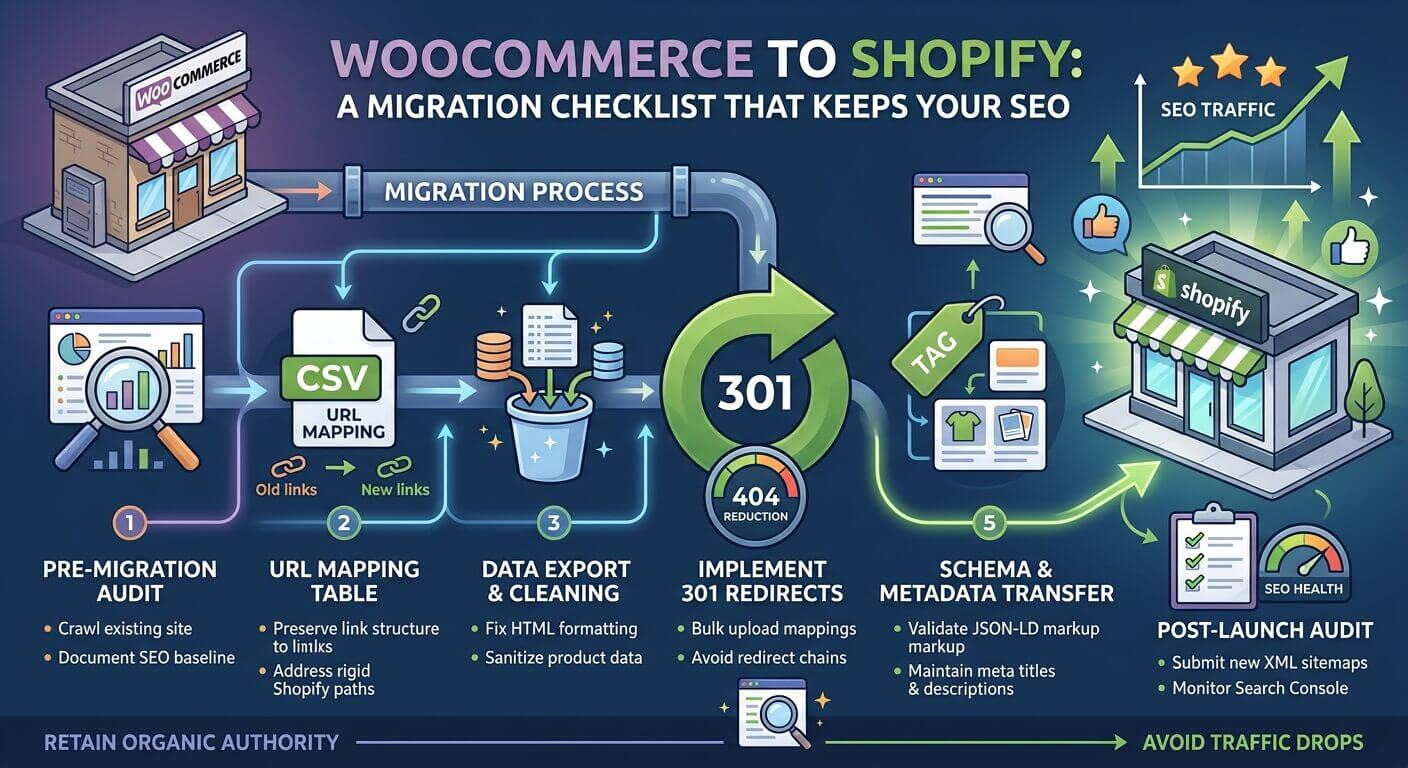
Stores usually move from WooCommerce to Shopify for speed, stability and lower maintenance. But there's a risk many only notice after launch: a drop in organic traffic. Search engines know your store by its old page addresses, and if those suddenly start returning 404 errors, rankings built over years can disappear within weeks.
The good news: it's an entirely controllable process. Below is the checklist we use on every migration.
The 30-second version
- Your URLs will change — Shopify uses a fixed URL structure, so every old page needs a 301 redirect.
- SEO data must be moved deliberately: meta titles, descriptions, image alt text.
- Customer passwords don't transfer — after launch, customers need an invitation to activate their accounts.
- The first weeks after launch matter most: check Search Console for 404 errors every day.
Step 1. Inventory before you migrate
You can't preserve what you don't know about. Before moving a single product, get the full picture of the old site.
- Crawl the whole site (for example with Screaming Frog) and save a list of every URL: products, categories, pages, blog posts, tags.
- Export from Google Search Console the pages that get impressions and clicks — these are your most valuable addresses.
- Find pages with backlinks. Links from other sites carry authority that your redirects need to keep.
- Save the SEO fields: meta title and description for every page, image alt text, product markup.
- Record your baseline: organic traffic, rankings for key queries, conversion rate. Without it, you won't know whether the migration went well.
Don't skip the "small stuff"
Tag pages, filter pages and old promo pages often have surprisingly many backlinks. Check them in Search Console before deciding you don't need them.
Step 2. How your URLs will change
Shopify's URL structure is fixed: products always live under /products/, categories under /collections/, pages under /pages/, and articles under /blogs/blog-name/. These prefixes can't be changed, so almost every WooCommerce address will change.
| Page type | WooCommerce (typical) | Shopify |
|---|---|---|
| Product | /product/red-dress/ |
/products/red-dress |
| Category | /product-category/dresses/ |
/collections/dresses |
| Page | /about-us/ |
/pages/about-us |
| Article | /blog/how-to-choose-size/ |
/blogs/news/how-to-choose-size |
Keep the end of each URL
You can't change the prefix, but you can control the part after it — the handle. Keep the same slug you had in WooCommerce: redirects become simpler and the new addresses stay recognisable.
Step 3. Moving the data
Order matters. Shopify recommends importing products first, then customers, and only then historical orders, so orders link correctly to products and customers.
| Data | How to move it | Watch out for |
|---|---|---|
| Products | CSV or a migration app | Variants, images, SEO fields, alt text |
| Customers | CSV, an app or the API | Passwords don't transfer |
| Orders | A migration app or the API | Turn off notifications before importing |
| Articles & pages | An app or by hand | Meta titles and descriptions |
| Reviews | Your reviews app | A separate import |
Turn off notifications before importing orders
When you import historical orders, staff set to receive new-order notifications get an email for every imported order. Turn notifications off before the import and back on afterwards.
Customer passwords
Shopify doesn't allow importing passwords, so migrated customers can't log in straight away. After launch, send them an account activation invite — in bulk through an app — and explain in the email why it's needed.
Step 4. The redirect map
This is the heart of an SEO migration. Every old address that had traffic or links must point to the closest matching new page with a permanent 301 redirect.
Rules worth following:
- One to one. A product goes to the same product; a category goes to the matching collection.
- Not to the home page. Search engines often treat a blanket redirect of everything to the home page as a 404.
- No chains. If an old URL points to an intermediate one, which points to the new one, redirect straight to the final page.
- Query parameters are ignored. Shopify redirects match on the path only and don't consider query strings (filters,
?page=2), so those need separate handling.
Redirects are created in the Shopify admin under Content → Menus → URL redirects, or imported in bulk from a single CSV file with two columns: "Redirect from" and "Redirect to".
Set up redirects before switching the domain
That way every old link — from bookmarks, search results and other sites — works the moment you move.
Step 5. Launch day
- Spot-check redirects: your 20–30 most important old URLs should land on the right pages.
- Remove the store password and connect your domain.
- Check
robots.txt— search engines must not be blocked from indexing. - Submit the new sitemap (
/sitemap.xml, which Shopify generates automatically) in Google Search Console. - Verify analytics: purchase events, goals, pixels.
- Place a test order from cart to confirmation email.
Step 6. The first 30 days
Small ranking fluctuations after a migration are normal: search engines need time to recrawl the site. Your job is to stop real losses.
- Check the 404 report in Search Console daily and add redirects for any URLs you missed.
- Compare against your baseline from step 1: traffic, rankings, conversion.
- Audit key pages for duplicates, empty meta descriptions and broken internal links.
- Don't change URLs again in the first few months — let search engines settle on the new structure.
Migration checklist
| Stage | What to do | Done? |
|---|---|---|
| Before | Full URL list, Search Console data, baseline metrics | ☐ |
| Structure | Slugs kept, new URLs planned | ☐ |
| Data | Products → customers → orders, SEO fields moved | ☐ |
| Redirects | 301s for every important URL, no chains | ☐ |
| Launch | Domain, robots.txt, sitemap, analytics, test order | ☐ |
| After launch | 404 and metrics monitoring, customer invites sent | ☐ |
Planning a move?
We migrate stores from WooCommerce to Shopify with a full redirect map, SEO data and order history — and keep watching the numbers after launch.
Get In Touch
Want to apply this to your store?
Tell us what your Shopify store needs — we'll suggest a solution and estimate the work